
How to set up cPanel app on Android
The cPanel app is now available on mobile devices which can be used for cPanel, WHM, and Webmail access. Learn how to set up cPanel app on Android by following the instructions below.
cPanel setup on Android
Step 1. Install cPanel from Play Store. If you already have it, proceed to step 2.

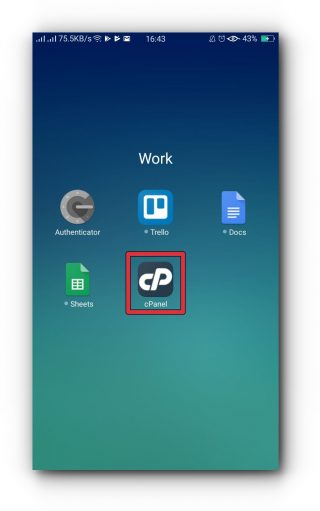
Step 2. Tap cPanel.
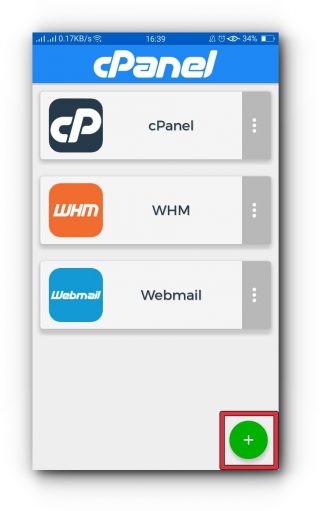
Step 3. Tap the plus sign (+) to add a service.
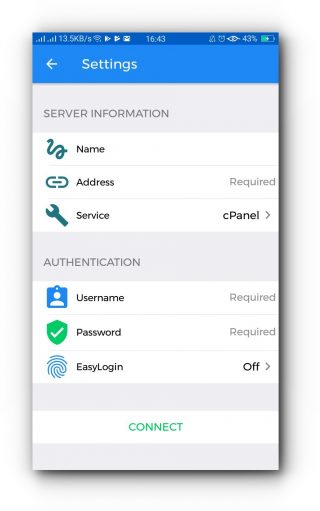
Step 4. Enter the following under "SERVER INFORMATION"
- NAME: My cPanel
- ADDRESS: hostsolutions.co.uk
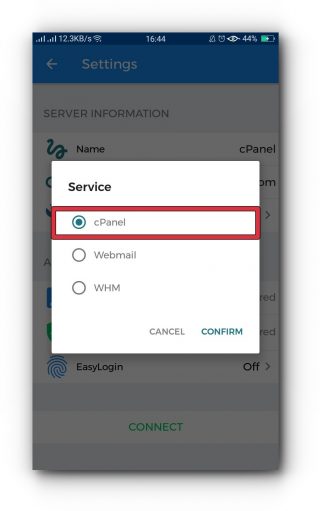
Step 6. Tap Service
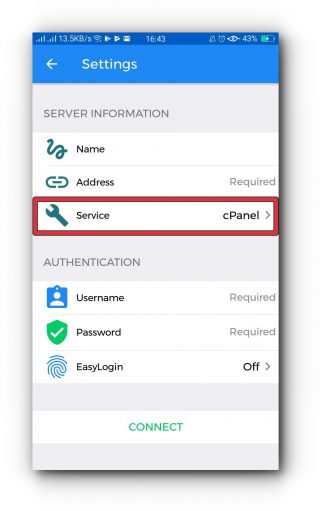
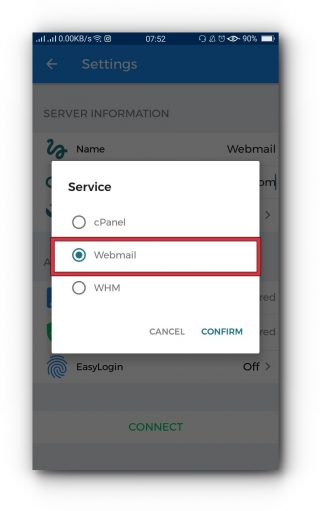
Step 6. From the Service pop-up, select cPanel and tap "CONFIRM".
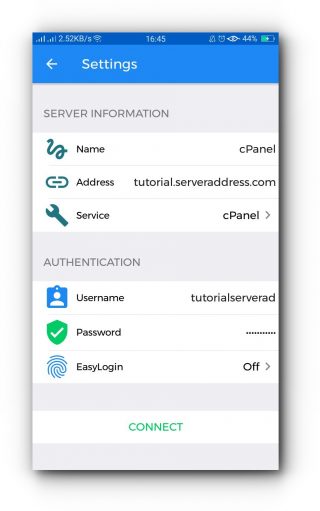
Step 7. Enter the following information under "AUTHENTICATION":
- Username - Your cPanel user log in
- Password: Your cPanel password
- EasyLogin - On/Off (Available for fingerprint reader)
Step 8. Once the credentials are entered, it will automatically connect to the server. If it does not, simply tap "CONNECT".
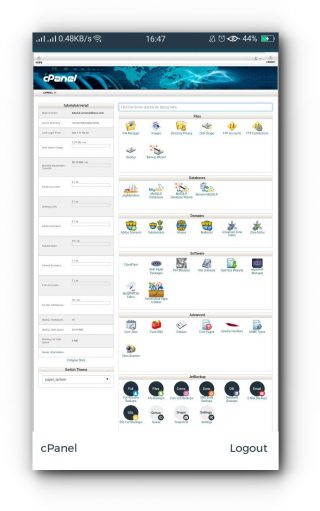
You are now able to access your cPanel from the App.
WebMail setup on Android
Step 1. Install cPanel from the Play Store. If you already have it, proceed to Step 2.
Step 2. Tap cPanel
Step 3. Tap the plus sign (+) to add a service
Step 4. Enter the following under "SERVER INFORMATION":
- Name: My Webmail
- Address: webmail.hostsolutions.co.uk
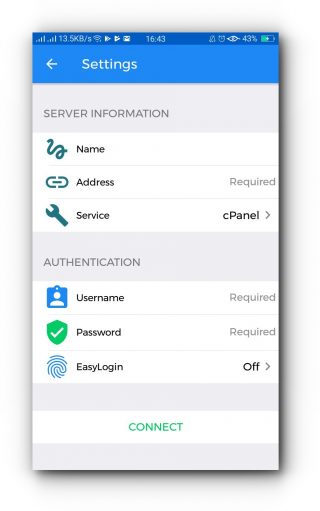
Step 5. Tap Service.
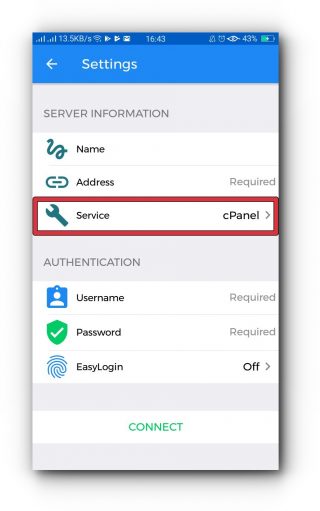
Step 6. From the Service pop-up, select Webmail and tap "CONFIRM"
Step 7. Enter the following information under "AUTHENTICATION":
- Username: Your e-mail address ([email protected])
- Password: Your e-mail password
- EasyLogin: On/Off (For fingerprint readers)
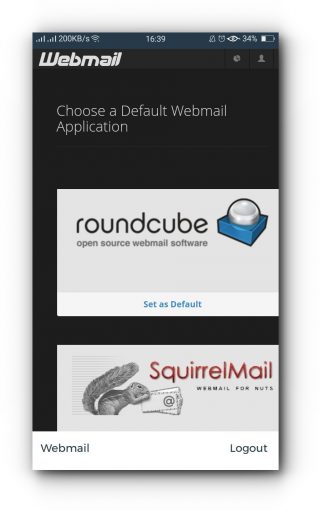
You are now able to access e-mails using Webmail on your Android device.
NOTE: The WHM setup is only for use by Administrators with root access to the server. It serves no purpose for end users/account holders.